
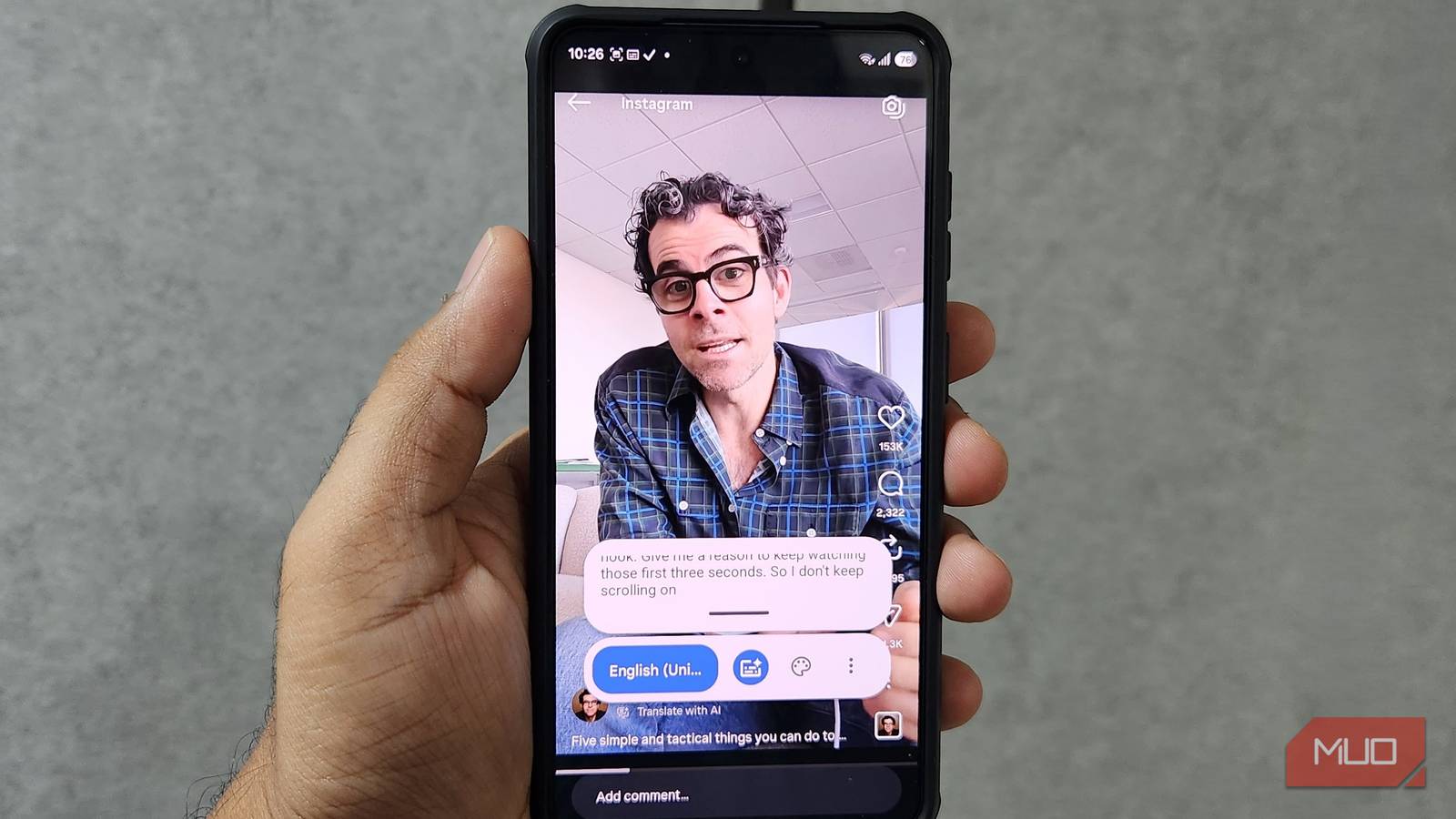

I don’t know about you, but I have this habit of reading subtitles while watching videos. It started years ago when I wasn’t very comfortable with English, and the habit has stuck ever since. Captions are also handy when I’m watching a video with a difficult-to-understand accent or the audio quality is just bad.
The problem is that not every video on the internet comes with captions. Fortunately, that’s not a problem because Android already offers a fix for that, and it’s called Live Caption.
I found 3 Android features so useful I’m confused why they ship disabled
Why aren’t these already on?
Live Caption is more handy than it sounds
It works like magic

Captions aren’t usually a problem when I’m watching something on YouTube or Netflix, but as soon as I step out of those apps, it’s a bit of a lottery. Instagram Reels, browser clips, and random videos I receive on WhatsApp often don’t have captions at all. And for those videos, Android’s Live Caption fills the gap. It generates captions for any audio that’s playing on my phone. Also, it’s not limited to just English. I can download other languages like German, Spanish, Russian, Polish, Japanese, and more.
The thing I like the most about Live Caption is that it works even when I’ve muted the audio. This is quite handy when I’m on public transport or in an office and want to watch something without disturbing anyone around me. Most importantly, this feature works entirely on-device. It doesn’t send any audio to the cloud for processing, which means it even works without the internet.
Enabling Live Caption is as easy as it gets
There are a couple of ways to go about it
Live Caption doesn’t work out of the box. It’s buried deep inside Android’s accessibility settings, so you’re unlikely to come across it ever unless you go looking for it.
To turn it on, head to Settings > Accessibility > Hearing enhancements > Live Caption and turn it on. Once you do, captions will appear automatically anytime you’re playing a video. The caption box is quite flexible. You can tap and hold it to move it around, resize it, or drag it all the way to the bottom to turn it off.
The good thing is you don’t need to reopen the accessibility settings menu every time you want to re-enable the feature. The Live Caption shortcut also appears inside the volume panel, so you can turn it on or off from there too. Live Caption is available for phone calls. Whenever you’re on a call, you’ll see an option to enable captions. If you don’t want to use it, you can disable Live Caption for calls entirely.
By default, Live Caption shows text in simple black-and-white colors, which gets the job done, but you’re not stuck with that look. Inside the Live Caption settings, you can adjust the text size and choose different caption styles so they always appear exactly how you like them. Personally, I prefer the custom styling option because it lets me control the opacity of both text and background. This keeps captions easy to read and also prevents them from obstructing any important part of the video.
Android’s automatic captions are not robotic anymore
AI makes captions feel alive

The Live Caption feature isn’t exactly new. It’s been available for a few years now, but with Android 14, Google introduced something called Expressive Captions. It’s an AI-powered feature that tries to capture the emotion and tone of the audio.
So if a football commentator shouts “GOAL,” for instance, Live Caption will show it in all caps to reflect the excitement. It can also recognize human sounds such as sighs, groans, gaps, and cheers. Beyond speech, Expressive Captions can identify environmental and ambient noises, like wind blowing, a knock on the door, applause, and other similar sounds that tell the full story of what’s happening on screen.
Honestly, this is what makes Live Caption truly a joy to use for me. I’m not looking at a bland wall of machine-generated text anymore. The captions feel like they were actually made for the video I’m watching and give me context that’d otherwise be lost if I were watching with the sound off.
It has some flaws, but I don’t mind them
Live Caption does have a couple of limitations. The first is that it doesn’t work for songs. That means any time I’m listening to music, I have to dismiss the captions box manually, which is a bit annoying. The other catch is battery life. Since Live Caption processes everything on-device, it uses a bit of extra power. Even so, it’s incredibly useful, and something everyone should try.
Android phones pack plenty of useful accessibility features that most people never bother to explore. Live Caption is just one example, back when I was exploring accessibility features for one of my articles. And honestly, I’m glad I did because it has become my go-to for watching videos on my phone.


9/10
- SoC
-
Qualcomm Snapdragon 8 Gen 5
- RAM
-
16GB
- Storage
-
512GB
- Battery
-
6,000mAh silicon-carbon